
AetherSX2 BIOS – Complete Guide, Download & Setup [2025]
If you are getting started with AetherSX2 and cannot launch a game after setting it up, you most likely don’t have the BIOS file. BIOS is an acronym for Basic Input/Output System, and it is the firmware that allows AetherSX2 to emulate real PS2 hardware. No bios file will lead to crashes, boot errors, black screen while playing, etc.
We recommend dumping your own BIOS from a PS2 console legally. When you place the .bin file into the /AetherSX2/bios/ folder, the AetherSX2 emulator will recognize the file every time you open the emulator. If you have a BIOS that has been properly installed, you will have a stable experience for PS2 emulation on Android.

What is AetherSX2 BIOS?
To emulate PlayStation 2 games accurately, AetherSX2 requires a PS2 BIOS file. The BIOS (Basic Input/Output System) is like the brain of your PS2 — it helps the emulator mimic the original hardware.
Role of BIOS in PS2 Emulation
Without the BIOS file, AetherSX2 can’t run most PS2 games. It ensures proper system behavior, regional compatibility, and smooth performance — just like a real console.
Is BIOS Included with AetherSX2?
No. Due to copyright laws, AetherSX2 does not come with BIOS files. You must extract it legally from your own PS2 console. Downloading BIOS files from the internet is risky and usually illegal.
How to Download & Install AetherSX2 BIOS on Android
If you’re just getting started, you can follow along with this guide to install your BIOS, and then you’re ready to play.
Dump the BIOS File from your PS2 Console
To dump the BIOS, you will need Free McBoot and use “dumpbios” to dump your BIOS. The dumped file will look like scph39001.bin, and it should be about ~4MB in size.
Transfer to Android Device
You can plug in your phone using USB, or you may use a file manager to the .bin file. Move the file to:
- Internal Storage > AetherSX2 > bios
- If you cannot find the “bios” file, you can create one.
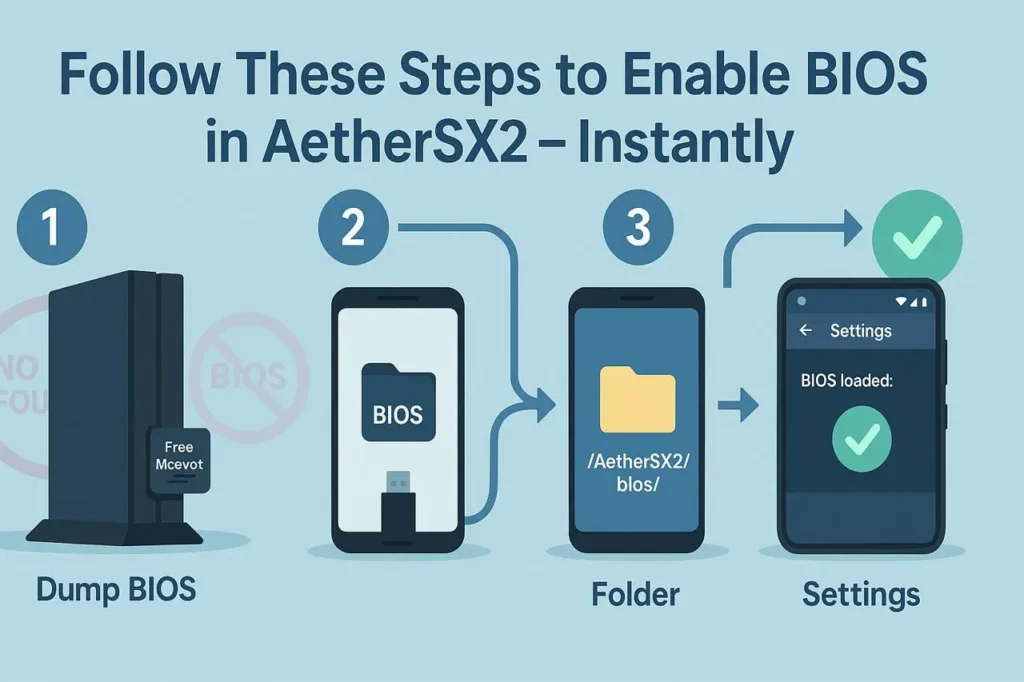
Load your BIOS file in the AetherSX2 Emulator
Once you have the file, open the app and in Settings > BIOS folder, select your dumped BIOS file. AetherSX2 will now use this file each time you open the app.
How to Add the BIOS File in AetherSX2 Emulator
You have dumped your BIOS? Now let’s put it to use in the emulator:
- Open any file manager on your android
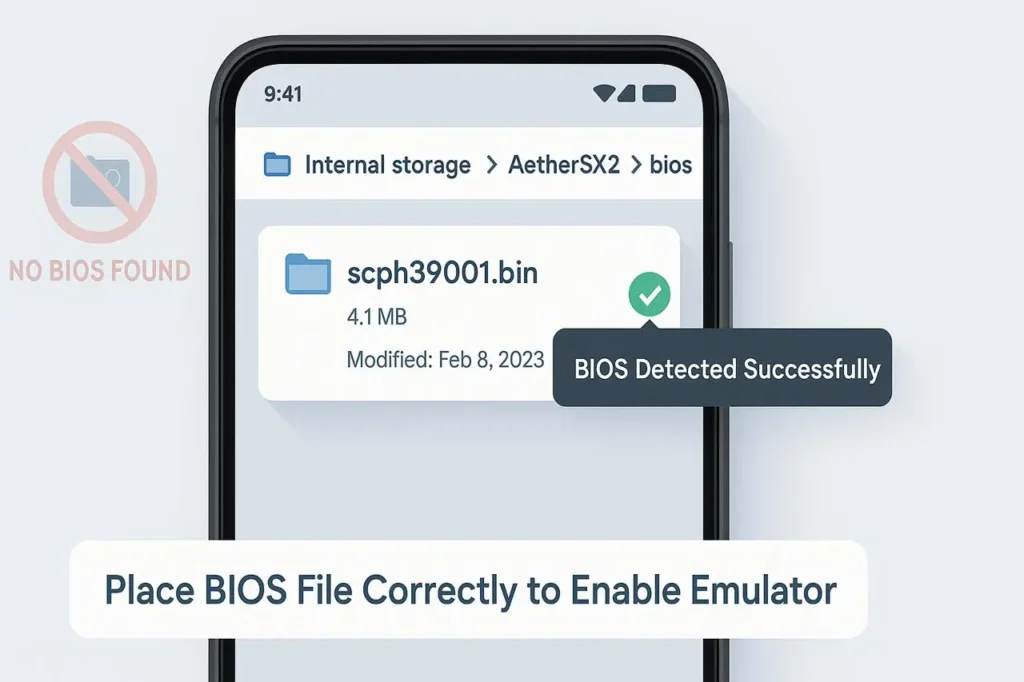
- Find your bios (ex. scph39001.bin)
- internal storage > AetherSX2 > bios/
- Place the file in this folder.
- Launch AetherSX2 → Settings → BIOS.
- Now choose your bios file. Lets play!
Best AetherSX2 BIOS Settings for Smooth PS2 Emulation
Set up your emulator settings to get the best speed, graphics, and performance out of your games:
- Renderer: Vulkan is best for newer Snapdragon devices, and OpenGL for older devices
- Internal Resolution: 1x (budget phone), 2x (high-end phone).
- Performance Mode: “Fast” or “Unsafe” mode is for the speed, “Safe” or “Optimal” mode is for accuracy.
- Multi-threading: Use Multi-threaded VU1 if your device has 4 cores or more. Battery Saver: Disable battery saving mode to give a smoother experience.
Which BIOS Region Is Best for AetherSX2?
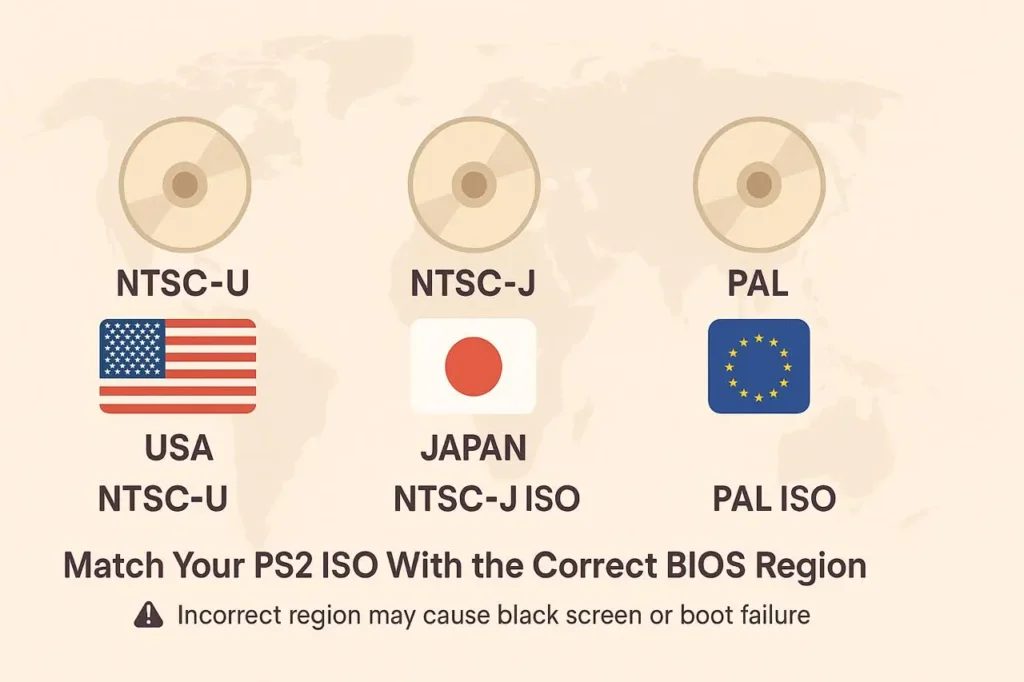
When dumping or picking a particular region (BIOS) for a PlayStation game, select a region related to your game library: USA (NTSC-U) gives good compatibility with English language titles; Japan (NTSC-J) works well for Japanese games; and Europe (PAL) works with Euro-region titles at 50 Hz.
USA (NTSC-U) is preferred for general compatibility/performance, especially with English language ISOs. Use Japan or PAL in only necessary when you have those titles in your collection.
It is strongly recommended that in most cases, you should never mix BIOS regions and ISO regions (example: PAL BIOS with NTSC-U ISO) unless you want to see a black screen or experience a boot error. It is best to make sure your BIOS and ISO are in aligned regions to avoid this issue.
AetherSX2 BIOS Common Errors and Fixes
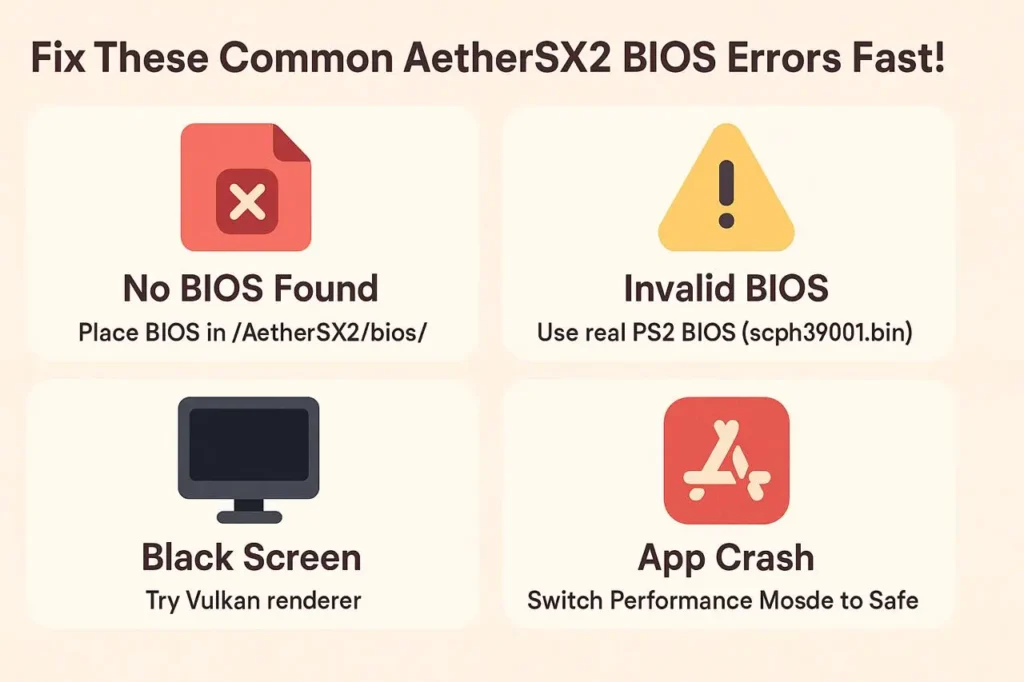
Having trouble getting games to run? These are the most common BIOS-related errors and how to fix them:
✅ No BIOS Found: File not placed in /bios/ folder or incorrectly named.
✅ Invalid BIOS: Corrupt or fake BIOS. Re-dump from your own console.
✅ Black Screen: Mismatched BIOS and ISO regions or incorrect rendering settings.
✅ App Crashes on BIOS Load: Faulty BIOS file. Delete and re-dump.
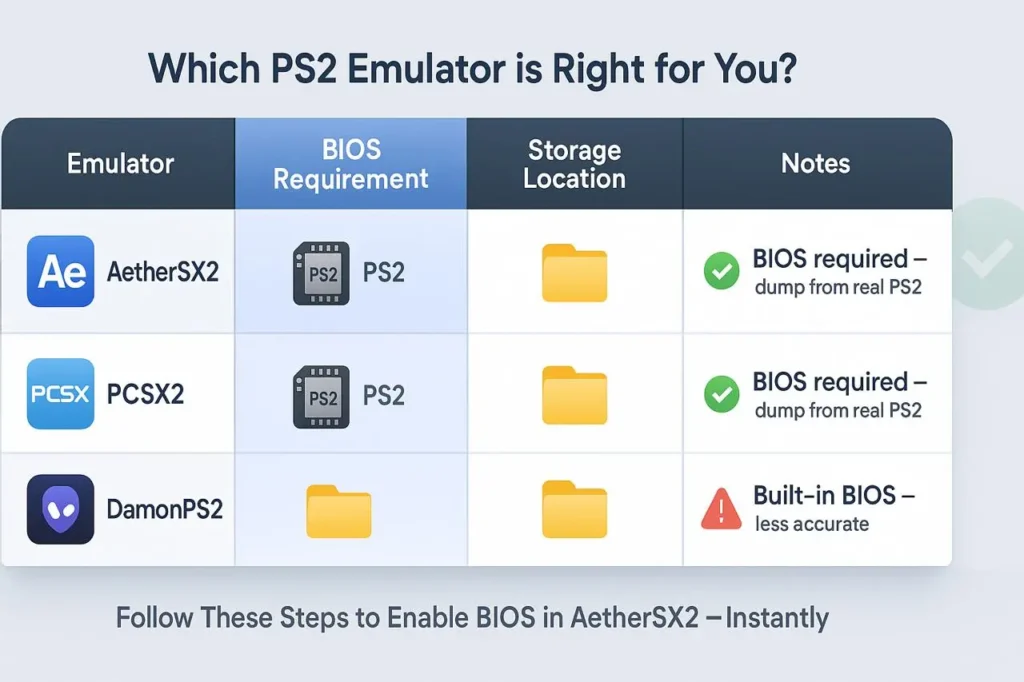
AetherSX2 BIOS vs PCSX2 vs DamonPS2 BIOS
🕹️ Emulator | 🧬 BIOS Requirement | 📁 Storage Location | 📝 Notes |
|---|---|---|---|
AetherSX2 | Legally dumped PS2 BIOS | /AetherSX2/bios/ (Android) | Mobile-optimized; supports major regions |
PCSX2 | Legally dumped PS2 BIOS | Documents/PCSX2/bios/ (Windows PC) | Offers advanced plugin support and debugging |
DamonPS2 | May use proprietary BIOS | Applies to virtual/licensed BIOS | Fast performance, but less stable |
AetherSX2 BIOS FAQs
Here are some important frequently asked questions,
Conclusion
The BIOS is a core requirement for using AetherSX2 properly — without it, your emulator won’t function. But with this guide, you now know how to:
- Get your BIOS legally
- Install it correctly
- Fix common BIOS-related errors
Stay safe, avoid illegal downloads, and use your own console to extract BIOS for the best experience. Once set up, you’re ready to relive the magic of PS2 gaming right on your phone or PC.